
KB 01: Install Altera Quartus Prime Lite and Driver
This article focused on guiding users through installing Altera Quartus Prime (Lite) Edition and its associated drivers. Quartus Prime is a software tool developed by Intel for FPGA (Field-Programmable Gate Array) and CPLD (Complex Programmable Logic Device) design. The Lite Edition is a free version of this software that offers essential features for design and development. This article includes step-by-step instructions on downloading the software from Intel's website, system requirements, and how to successfully install the Quartus Prime software and any necessary drivers on a compatible computer system.
KB01.1 Download and Install Altera Quartus Prime Lite
To download the FPGA software from Intel, you must first create an account.
Register an account on the Intel website.
- Please register a Standard Access account on the following link:
https://customerlogin.altera.com/ - Fill in the personal information by using your campus email address and phone number in the application form.
- After you submit the registration form, Intel will send you an activation email. Please check your email system and click the link to activate your account.
Download Altera Quartus Prime Lite Software
- Download the FPGA development tools from the Altera website (Quartus Prime Software only supports Windows x64 and Linux)
You can download the Quartus Prime Lite (free license) or Standard (need a valid license) from the Altera Download Center for FPGAs: Download Altera Quartus Prime Software. - Looking for Altera Quartus Prime Lite Edition Design Software Version 25.x for Windows and click on it.
- On the Individual Files tab, download the following files:
- Quartus Prime Lite (QuartusLiteSetup-*****-windows.exe)
- Questa - Altera FPGA and Starter Editions (QuestaSetup-******-windows.exe)
- MAX 10 FPGA Device Support (max10-*****.qdz)
Install Altera Quartus Prime Lite
- Wait until all three files are completely downloaded. Open the download folder and double-click the QuartusLiteSetup-21.x.x.xxx-windows.exe to start the installation.

- The Altera Quartus Prime software installer is the primary installer. It installs other software if that installer exists in the same folder. Here, the installer will automatically select the MAX 10 Device and Questa - Intel FPGA Starter Edition (Free).
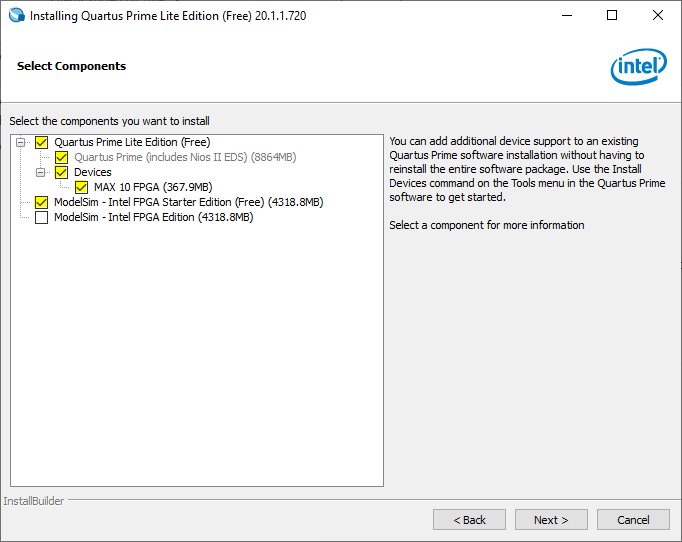
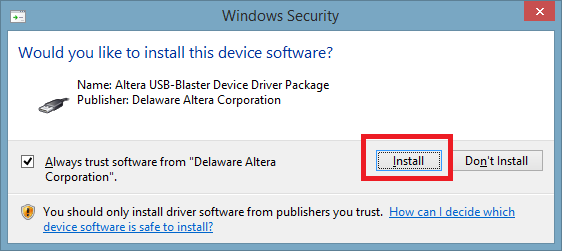
- After installing Quartus Prime and Questa on the computer, the installer will install the USB-Blaster driver.
KB01.2 Request a License File for Questa FPGA Starter Edition
Request a License File from Intel
The Altera Quartus Prime Lite Edition is free and does not require a license. Questa FPGA Starter Edition is also free, but requires zero-cost licenses. The Altera Quartus Prime Pro Edition software requires no license for Intel Cyclone 10 GX devices only.
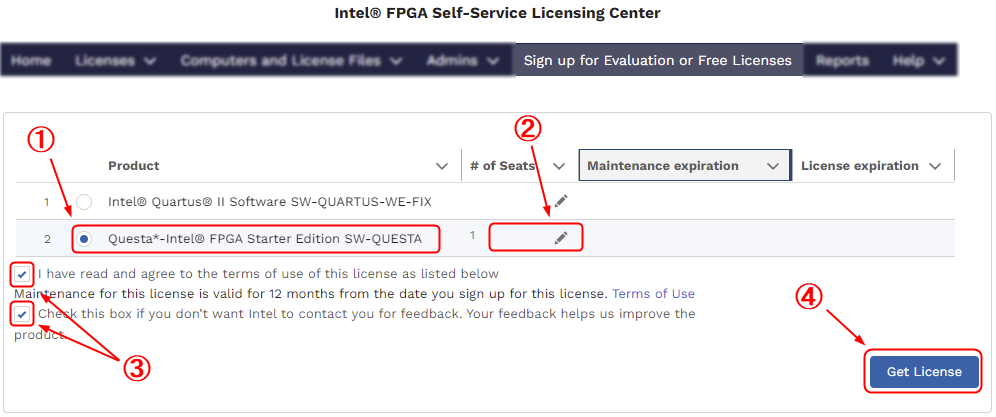
- You must log in to the Intel FPGA Self-Service Licensing Center to create and manage your licenses. From the Self-Service Licensing Center Home page, click Sign up for Evaluation or No-Cost License to request a license for Questa FPGA Starter Edition (License: SW-QUESTA).
Select Questa FPGA Starter Edition, enter 1 in the # of Seats field.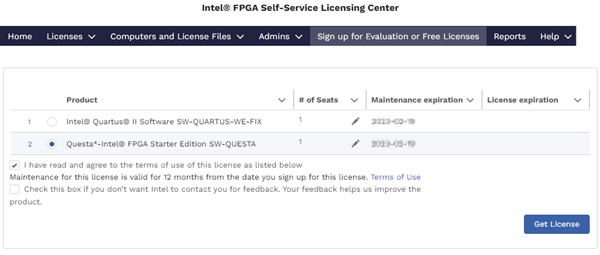
Once you have read the license terms of use, click the "I have read and agree to the terms of use of this license as listed below".
Proceed to click Get License. A window will pop up to ask which computer the license should be assigned to.
- Click +New computer to generate a new license for your computer.
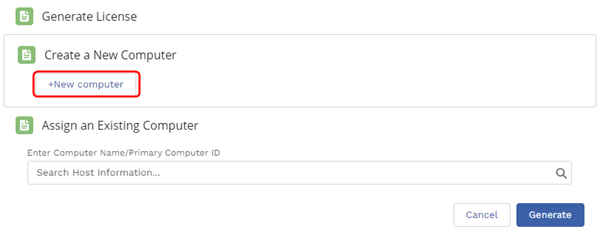
- Open Command Prompt and type ipconfig /all to find the network interface card (NIC) on Windows. The command prints network information as below.
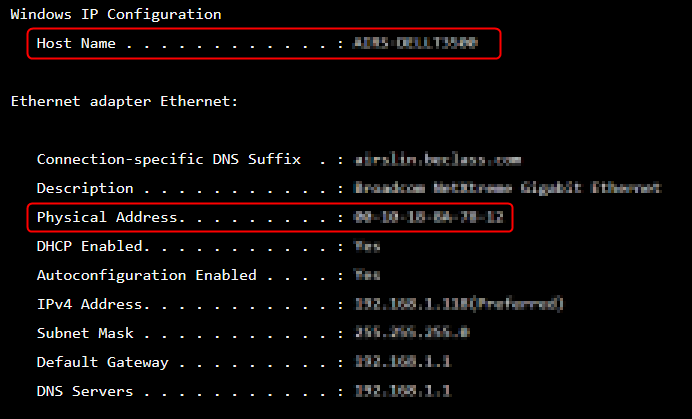
- The Computer Name appears as the Host Name.
- The Primary Computer ID is the number on the Physical Address line. This number is a 12-digit hexadecimal number.
If the system has more than one network card, you can use the NIC ID of any network card connected to the computer.
- Enter the information in the following dialog to generate a new license for your computer.
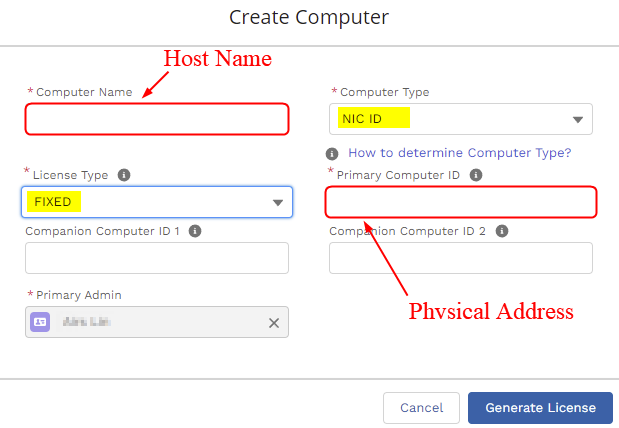
- Click Generate License, and Intel will send the license file to the email address in your My Intel account profile.
Set up the License for the Questa-Intel FPGA Starter Edition Software
Download the license file from the email and save it in the IntelFPGA or IntelFPGA_lite folder.
- Right-click the Windows Start icon, then select System.
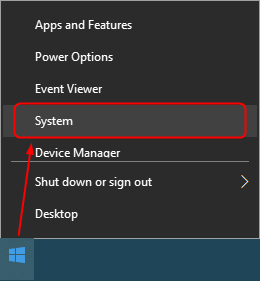
- Click Advanced System Settings to open the System Properties dialog.
- In the Advanced tab, click Environment Variables.... In the System Variables, create a New variable with the name = SALT_LICENSE_SERVER, and click Browse file... to locate the license file.
- Click OK.
KB01.3 Configure Quartus Prime Software
Start the Altera Quartus Prime software.
Specify EDA Tool Settings
Perform the following steps to specify EDA Tool Options.
- Click Tools ➤ Options... ➤ EDA Tool Options to specify the location of your simulator for integration with Altera Quartus Prime.
- In the Questa Intel FPGA field, enter the following Questa-Intel FPGA Edition executable path:
- Questa - Intel Starter (Free): C:\altera_lite\<version>\questa_fse\win64
- Questa - Intel Standard: C:\alteraFPGA\<version>\questa_fe\win64
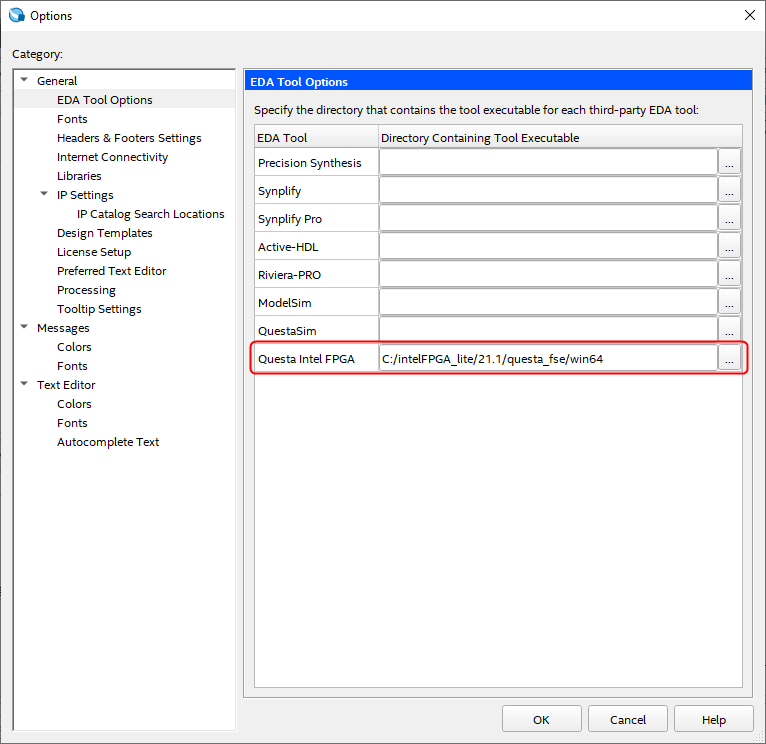
- Click OK to close the EDA Tool Options dialog.
Configure the Text Editor
To set up the Text Editor, a source file must be created.
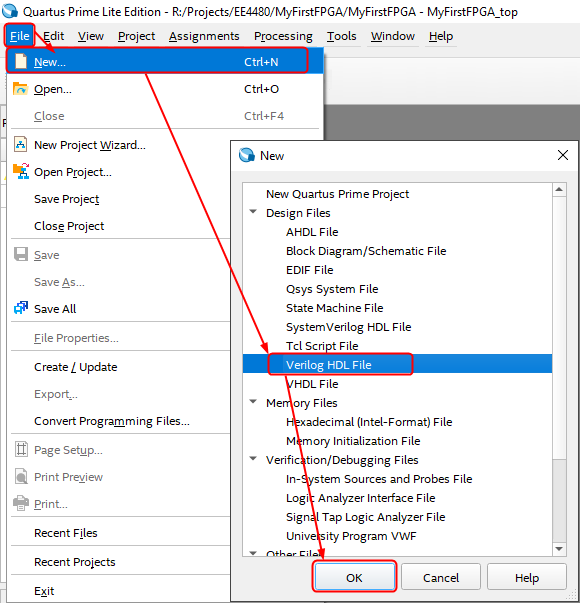
- Select File ➤ New... from the Menu bar. Select the Verilog HDL File from the Design Files list and click OK.
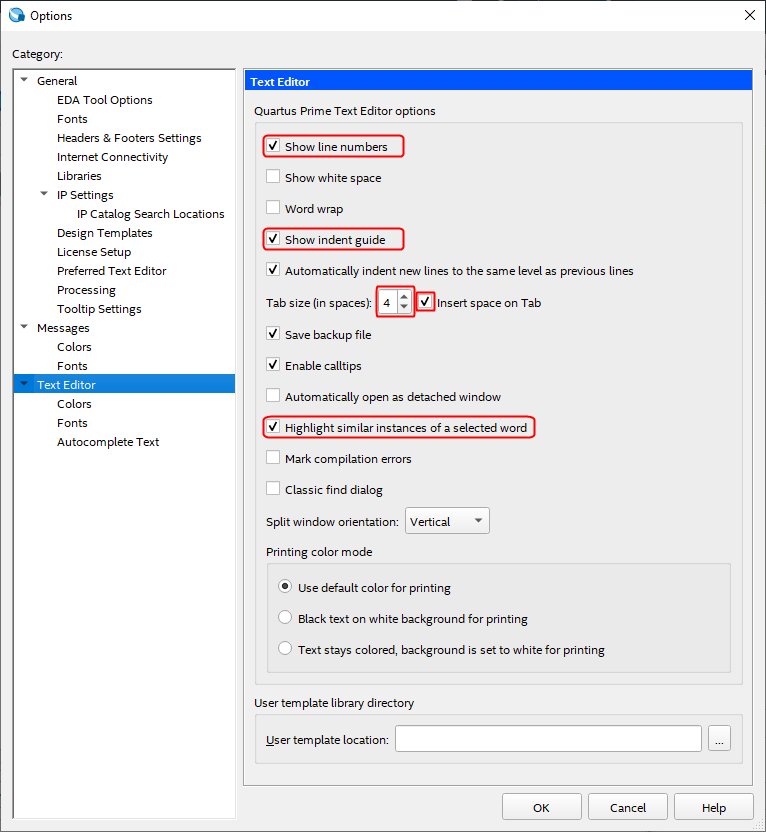
- Click Tools ➤ Options ➤ Text Editor, then make sure to check the options as below, and then click OK to save the change.
- Next, close the file without saving it.
KB01.4 Install USB Blaster Driver in Windows 11
If you are using the Intel FPGA board, you must connect it to your computer via USB. Then, right-click on the Windows Start button  to launch the Device Manager.
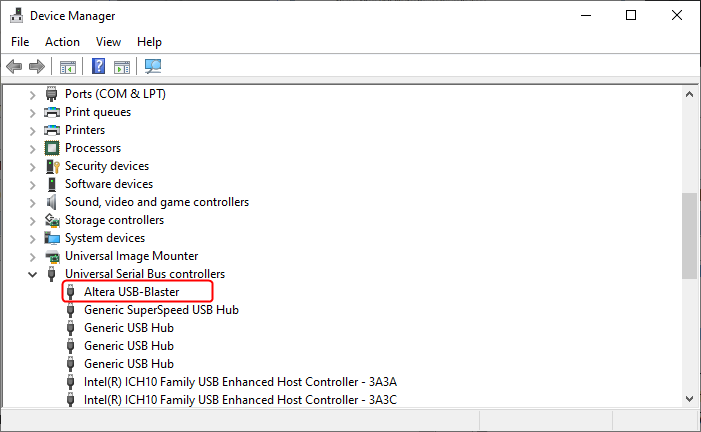
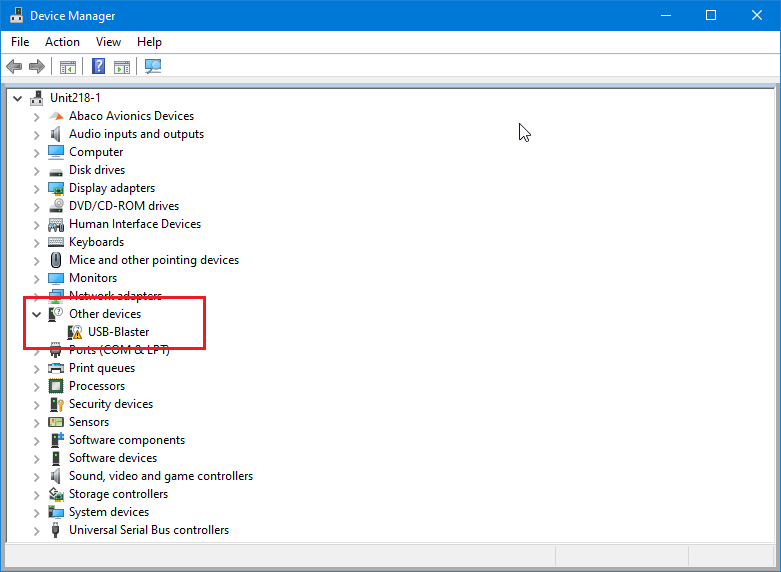
Follow the steps below to install the driver.
Follow the steps to install the driver.
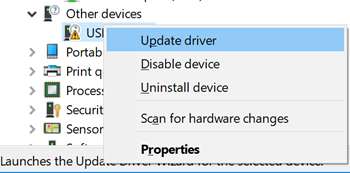
- Right-click on the USB-Blaster and select Update driver.
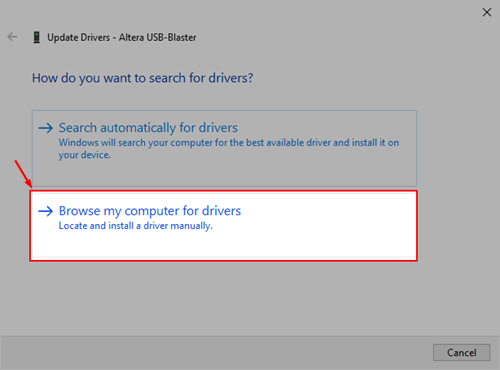
- A window prompt asks: How do you want to search for driver software? Select Browse my computer for drivers.
- Under Search for driver software in this location, click Browse.
Browse to the C: driver, open the IntelFPGA_lite ➤ <Version> ➤quartus ➤drivers folder, then click OK. Make sure the Include subfolders option is checked, then click Next.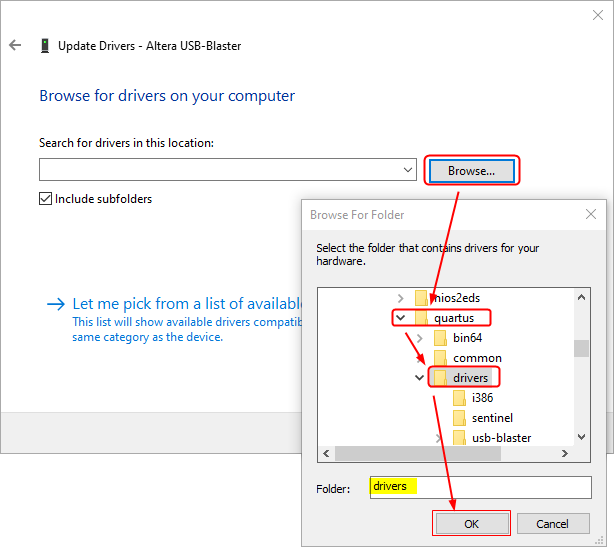
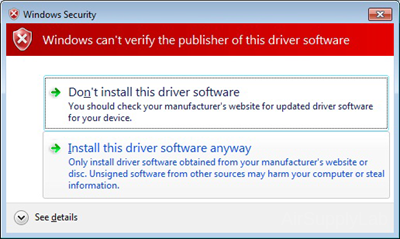
- A warning may appear that says Windows can't verify the publisher of this driver software. This message appears because the driver is not signed. Click Install this driver software anyway to proceed.
- Click the Close button when you see the "Windows has successfully updated your driver software" dialog.